Account, privacy and dataHow-to
Export your data
In Profile & settings › Privacy & data, tap Export your data. Mova prepares a ZIP file with your data in JSON and CSV, and your routes as GPX, and you choose where to save or send it.
Export
- Go to Profile & settings › Privacy & data › Export your data.
- Check What’s included, then tap Request export and confirm Export your data?
- Keep Mova open while it shows Preparing your export…: it syncs your latest changes, collects your data, adds your routes and creates the file.
- When it says Your export is ready, tap Download. Your phone’s share sheet opens: save the file to Files, or send it where you like.
- Tap Done. Mova then deletes its own copy of the file from the phone.
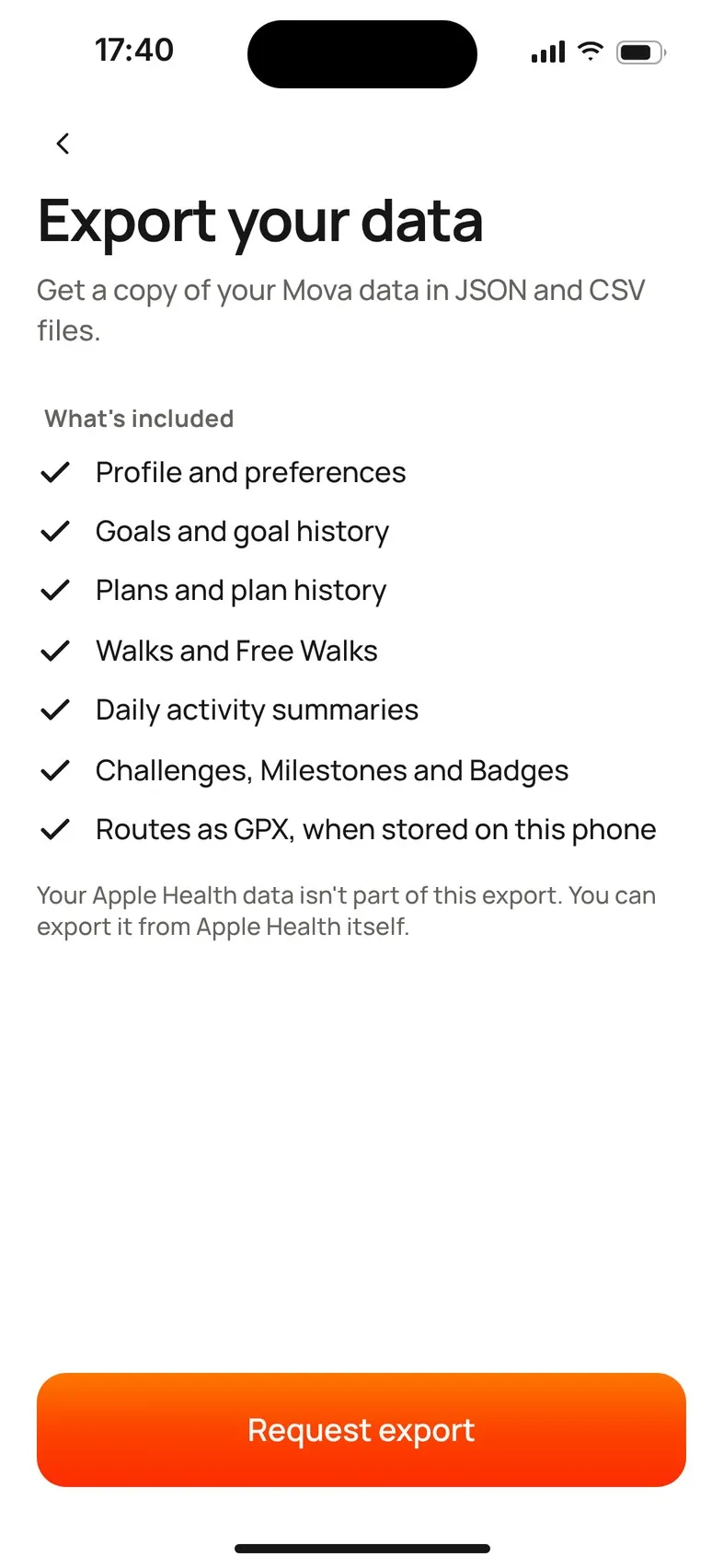
The export is prepared on your phone. There’s no email or download link. You can export even when your membership has ended.
What’s included
- Profile and preferences
- Goals and goal history
- Plans and plan history
- Walks and Free Walks
- Daily activity summaries
- Programs, Challenges, Milestones and Badges
- Routes as GPX, when stored on this phone
The file is called mova-export- followed by the date, for example mova-export-2026-10-20.zip. Inside are mova-export.json (everything), CSV files for walks, daily activity, goal history and planned sessions, a routes folder with GPX files, and a README that explains the files.
What isn’t included
- Your Apple Health or Health Connect data. Export that from Apple Health or Health Connect itself.
- Routes from other phones: routes stay on the phone that recorded them. Export on that phone too.
- Anonymous usage data.
Your export contains health information: keep the file somewhere safe.
If it doesn’t work
| Mova says | What to do |
|---|---|
| You need a connection to request an export. | Connect and try again. |
| Confirm it’s you · Sign in again to request your export. | Tap Sign in again. |
| Not enough space on this phone | Free up some space, then try again. |
| We couldn’t prepare your export. · Nothing was shared. | Try again in a moment. |
| Couldn’t open the share sheet. Try again. | Tap Download again. |
| … recent changes haven’t synced yet and aren’t included. | Connect, wait a moment, and export again for a complete copy. |
| … routes couldn’t be read and aren’t included. | The rest of the export is complete. |
Didn’t solve it?
Email support@movawalk.com. From the app, Profile & settings › Help & support › Contact support adds your app version and support reference.