Walks and workoutsHow-to
Find a workout: recommendations, search and filters
Open Workouts and tap Workouts at the top. Start with Recommended for you, or search and filter by duration, place, intensity and level.
Open the library
Tap Workouts at the bottom, then Workouts at the top (between Programs and Challenges). Mova remembers which of the three you looked at last.
You’ll find, from top to bottom:
- Free Walk: walk at your own pace.
- Search workouts, with a Filters button next to it.
- A featured walking method, such as Japanese Walking.
- Recommended for you: workouts from your plan’s coming days, and versions of them.
- Walking styles: Easy, Brisk and Intervals.
- Short on time: quick sessions.
- Walking methods: Japanese Walking, Interval Walking, Progressive Walking.
- Rows for Treadmill, Indoor & chair, After a meal, Recovery & gentle and Support your walk.
- Browse all workouts at the bottom.
Search
Tap Search workouts and type a word, for example treadmill, chair or Japanese. Mova looks at workout names first, then at the method, place and effort, then at the descriptions.
Filter
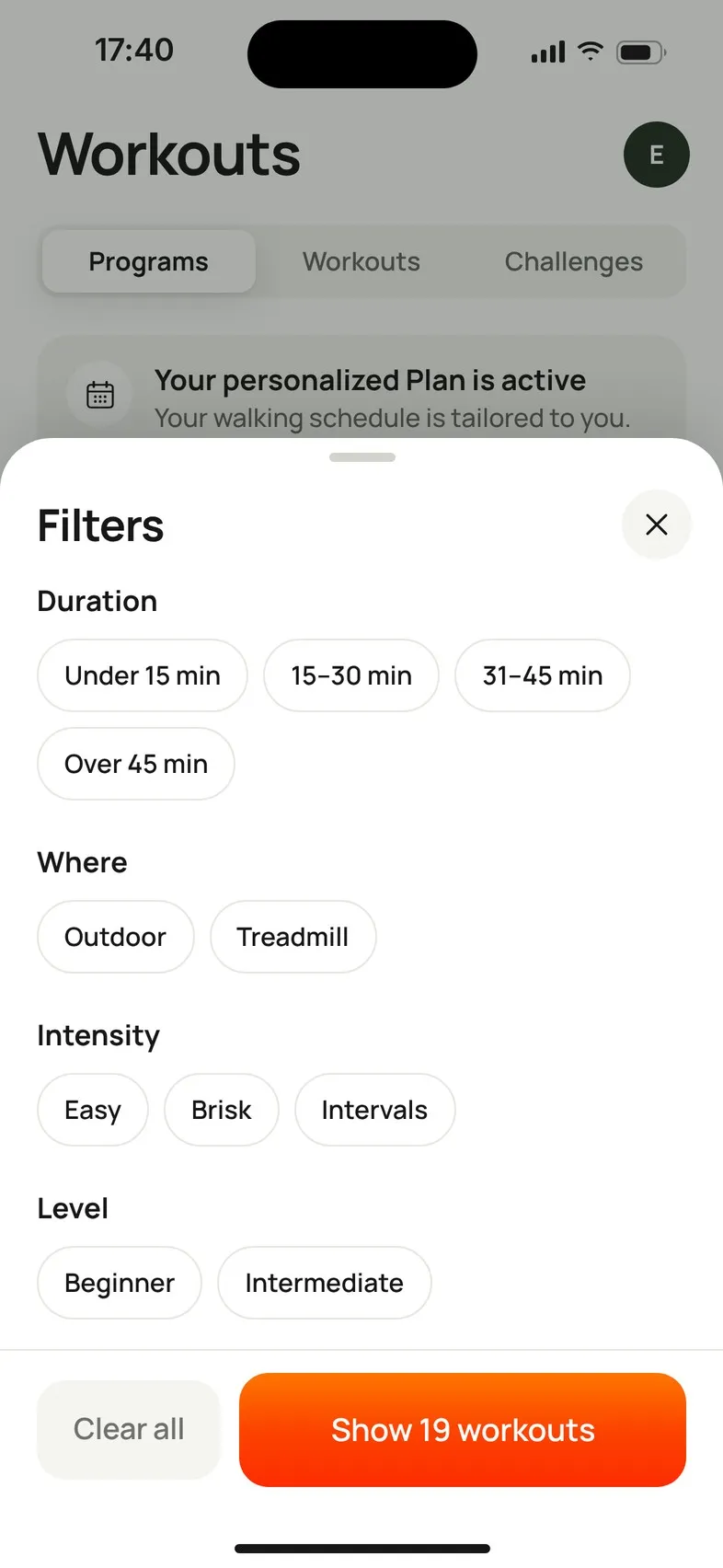
Tap Filters and choose:
| Filter | Options |
|---|---|
| Duration | Under 15 min · 15–30 min · 31–45 min · Over 45 min |
| Where | Outdoor · Indoor · Treadmill |
| Intensity | Easy · Brisk · Intervals |
| Level | Beginner · Intermediate · Advanced |
Then tap Show … workouts. You can choose one duration. In the other groups, choosing two options shows workouts that match either; choosing in two groups shows workouts that match both. Options with no workouts are hidden. Clear all removes your filters.
No results?
No walks match means nothing fits all your filters and words. Try fewer filters or a different word, or tap Clear filters. You can always start a Free Walk.
If you see Workouts can’t load right now, that’s a problem loading the list, not an empty search: tap Try again. Free Walk works either way.
Then
Tap a workout to see its structure and start it: Start a walk.
Didn’t solve it?
Email support@movawalk.com. From the app, Profile & settings › Help & support › Contact support adds your app version and support reference.