Getting startedExplained
Find your way around Mova
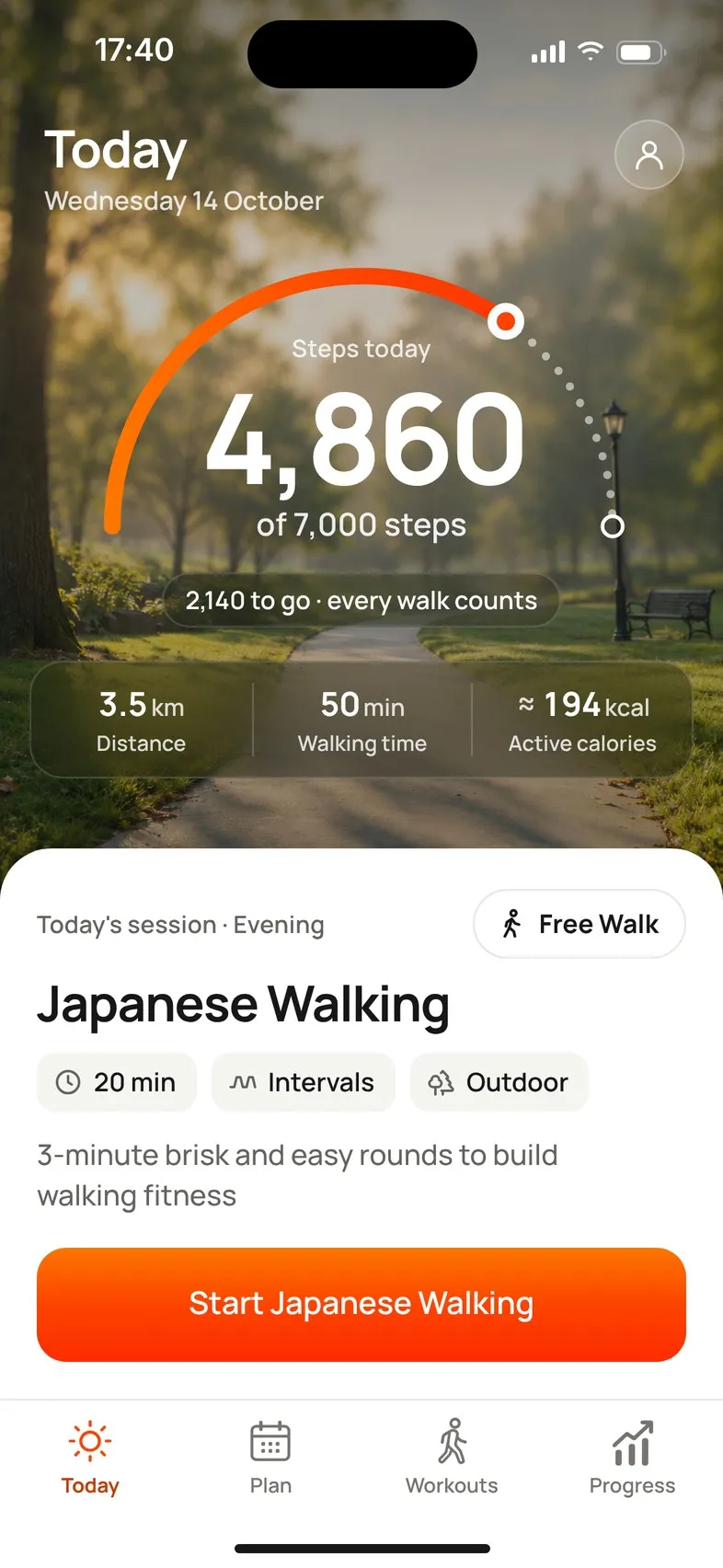
Mova has four tabs along the bottom, Today, Plan, Workouts and Progress, and a round profile button at the top right that opens Profile & settings.
The four tabs
| Tab | What you’ll find |
|---|---|
| Today | Your steps so far against your daily goal, distance, walking time and estimated active calories, today’s planned walk with a button to start it, a Free Walk button, this week and this month at a glance, and any challenge you’ve joined. |
| Plan | Your week, day by day, with every planned walk, and Why this week?. Use the arrows to look at next week and the weeks after. |
| Workouts | Three sections at the top: Programs, Workouts (every walk and workout, with search and filters) and Challenges. |
| Progress | Overview (this week), Trends (weeks and months) and Achievements (milestones, personal bests and your streak). |
Profile & settings
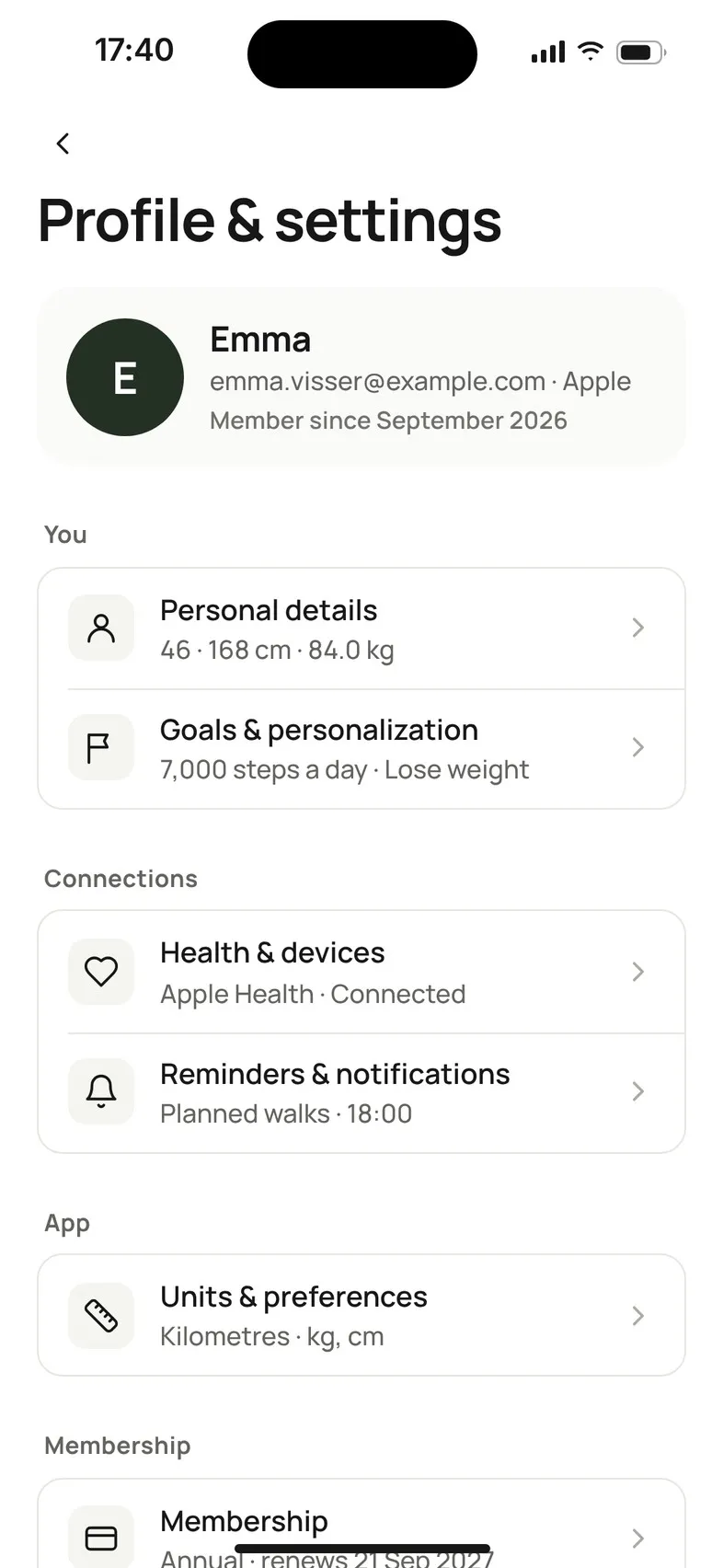
Tap the round profile button at the top right of any tab. Profile & settings is grouped like this:
- You: Personal details · Goals & personalization
- Connections: Health & devices · Reminders & notifications
- App: Units & preferences
- Membership: your membership and its status
- Data & support: Privacy & data · Help & support · Legal & about
- Account: sign-in details and Sign out
During a walk
When you start a walk, Mova shows the walk screen. Tap the arrow at the top left to go back to the rest of the app while the walk keeps recording; a Walk in progress bar above the tabs takes you back to it. See During a walk.
Help in the app
Profile & settings › Help & support opens this Help Centre, lets you email support, and has shortcuts for the two most common problems: Something wrong with my membership? and Steps not showing up?
Didn’t solve it?
Email support@movawalk.com. From the app, Profile & settings › Help & support › Contact support adds your app version and support reference.